Author: Michael

  • Content Tech: Google Lit Trips

    Content Tech
    Ideas for Technology Use in the Classroom

    Mrs. Calandra’s English 9R class is about to embark on a journey in Google Earth as they read The Odyssey by Homer. Google Lit Trips are very interesting and a new way to teach literature, incorporating the geography of the book. We’re planning to have students create their own placemarks in Google Earth along the way, to demonstrate their understanding of the book.

    Check out Google Lit Trips for other titles to see how they look (there is a small but growing list of popular titles). The Google Earth files (.kmz files) download to your computer, and open up in Google Earth (which is on all school computers).

    Google Earth is becoming an incredible resource, and applications such as these Google Lit Trips are presenting new and unique ways to teach and learn in many different content areas!

    http://www.GoogleLitTrips.com.

    shapeimage_3

    Image citation:
    “Mediterranean Odyssey.” Map. Google Lit Trips. Ed. Jerome Burg. 11 Apr. 2009. 22 Apr. 2009 <http://googlelittrips.com>
  • TTT: Automatic Spell Check in Outlook

    Tuesday’s Technology Tip
    Little ‘bytes’ of information to hopefully make your computing life easier.

    For this week’s TTT, here is a brief video demonstrating how to activate automatic spell checking in Outlook. Click below to play , and once playing there is a full-screen option in the lower right corner of the video.

    ∞∞∞∞∞∞∞∞∞∞∞∞∞∞∞∞∞∞∞∞∞∞∞∞∞∞∞∞∞∞∞∞∞∞∞∞∞∞∞∞∞∞∞∞∞

    This tip is taken from Nancy Wilhelm’s great Tips & Tricks newsletter. A new issue appears monthly, and can be found on the homepage of WITS. Look in Public Documents | Common for Entire District | Tips & Tricks | Newsletter.

  • Content Tech: Summary of Using Technology with Classroom Instruction that Works

    107025b“Using technology for technology’s sake isn’t a good application of instructional time or funding, and it is unlikely to improve student achievement.” (p.217)

    Over the past few months we’ve taken a look at how technology can support research-proven instructional strategies. Let’s take a few minutes to summarize the ideas presented by Pitler et al in the book, Using Technology with Classroom Instruction that Works.

    The quote above, which leads off the Appendix, pretty much sums it up. There are many cool, slick technology tools available, but if the use of technology is not tied to a learning goal, then it’s more than likely not a good use of technology.

    We have been working with learning goals and data teams as part of the district initiative on improved learning. This book is a great tie to how technology can support instruction in meaningful ways.

    As a quick recap, the planning questions for instruction which should frame any instruction, and links back to the individual posts with the related strategies and technology applications are:

    I hope that this book review has helped you to think about ways you can use technology to support your teaching. The array of tools available is great, and gets bigger every day. The challenge is to find the ways in which technology provides meaningful experiences to improve learning.

    As always, your thoughts, comments or questions are always welcome!

    Image citation:

    “Book Cover.” Association for Supervision and Curriculum Development. 5 Nov. 2008 <http://shop.ascd.org/ProductDisplay.cfm?ProductID=107025>.

  • Content Tech: Riding the Digital Wave Conference 2009

    Content Tech
    Ideas for Technology Use in the Classroom

    Erie 1 BOCES hosted the 5th Annual Riding the Digital Wave Conference at the Harlem Rd. Education Campus. Below is my under-5-minute wrap up of my experience. Click to play, and mouse over the lower right corner of the video to find the full-screen button.

    Here are links to the sites highlighted:

    Ben Higgins Technology Integrator Page
    Lancaster Central Schools Digital Citizenship
    Digital Dossier
    vuvox

  • TTT: Quick Tabs in Internet Explorer

    Tuesday’s Technology Tip
    Little ‘bytes’ of information to hopefully make your computing life easier.

    When you have multiple web pages open at once, each one can be displayed on a separate tab, rather than in a separate window. These tabs make it easy for you to switch between open websites without having to manage multiple windows.

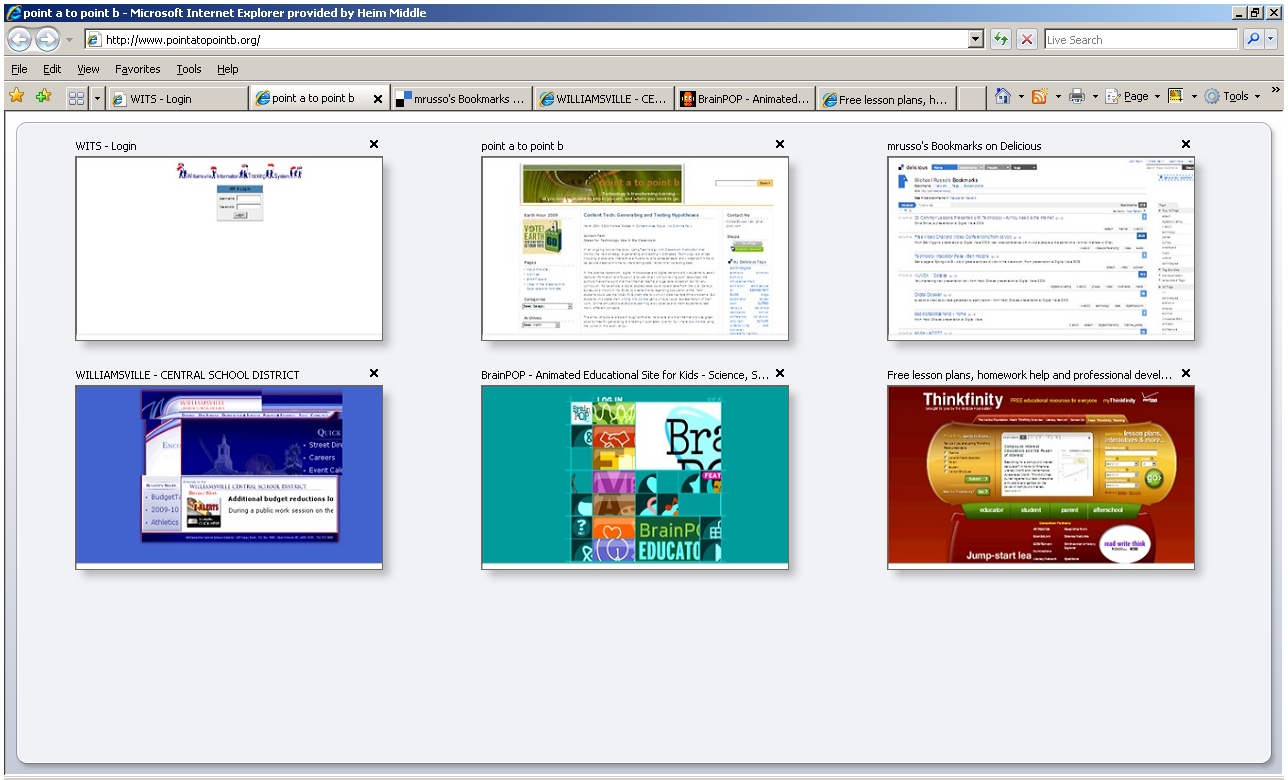
    In Internet Explorer, Quick Tabs provides a miniature visual view (called a thumbnail) of all your open tabs. This makes it easier to switch to the webpage that you want to view. With multiple tabs open, press Ctrl-Q to see thumbnails of your open tabs. Click on the thumbnail of the webpage you want to switch to.

    Here is a screen shot of a Quick Tabs view in Internet Explorer (click to enlarge):

    quicktabs

    ∞∞∞∞∞∞∞∞∞∞∞∞∞∞∞∞∞∞∞∞∞∞∞∞∞∞∞∞∞∞∞∞∞∞∞∞∞∞∞∞∞∞∞∞∞

    This tip is taken from Nancy Wilhelm’s great Tips & Tricks newsletter. A new issue appears monthly, and can be found on the homepage of WITS. Loook in Public Documents | Common for Entire District | Tips & Tricks | Newsletter.

  • Content Tech: Generating and Testing Hypotheses

    Content Tech
    Ideas for Technology Use in the Classroom

    In an ongoing look at the book, Using Technology with Classroom Instruction that Works, the next strategy is generating and testing hypotheses. Technology advances including probeware, interactive simulations, and spreadsheets, allow classroom time to be devote classroom time to interpreting data, rather than collecting data.

    In the science classroom, digital microscopes and digital sensors allow students to easily capture information and focus on analysis. Even without having such resources, the authors make the point that the Internet itself is a huge data collection tool for any curriculum. For example, a social studies class could collect data from the U.S. Census Bureau and import it into Excel to create charts regarding population shifts. Math students could use the NASA FlyByMath site to work on distance-rate-time problems. ELA students who paste their writing into Wordle get a unique visual representation of their work. Online simulations at Explore Learning allow science and math students to test many different concepts.

    The array of tools available through software, hardware and the Internet provide great opportunites for generating and testing hypotheses. Just for fun – here is a Wordle using the words in this post – enjoy!

    wordlepic

    click to enlarge

  • TTT: Jumping PowerPoint Slides

    Tuesday’s Technology Tip
    Little ‘bytes’ of information to hopefully make your computing life easier.

    When presenting, you can easily jump around in your PowerPoint slides out of order. Simply type the number of the slide you wish to jump to and tap the Enter key. You can also right-click the current slide and choose Go To Slide and click on the slide you want to jump to.

    ∞∞∞∞∞∞∞∞∞∞∞∞∞∞∞∞∞∞∞∞∞∞∞∞∞∞∞∞∞∞∞∞∞∞∞∞∞∞∞∞∞∞∞∞∞

    This tip is taken from Nancy Wilhelm’s great Tips & Tricks newsletter. A new issue appears monthly, and can be found on the homepage of WITS. Loook in Public Documents | Common for Entire District | Tips & Tricks | Newsletter.

  • Content Tech: Homework and Practice

    Content Tech
    Ideas for Technology Use in the Classroom

    In an ongoing look at the book, Using Technology with Classroom Instruction that Works, the next strategy is homework and practice. Marzano’s research indicates that typically, students need approximately 24 repetitions of a skill in order to achieve 80 percent competency.

    There are many web resources that can help students practice skills. Some sites are subscription services and some are free. Below is a short list of some of the sites that we use to help students practice skills, and also some sites recommended in the book that may be unfamiliar.

    Everyday Math Games – 5th graders use this for math skills
    MasterGuru – an online game to practice ELA, Social Studies, Math and Science skills
    BrainPOP – many movies include a quiz at the end to test knowledge
    Explore Learning Gizmos – Science and Math teachers use these interactive tools for teaching and reinforcing
    BBC Skillswise – factsheets, worksheets, quizzes and games to practice words and numbers
    National Library of Virutal Manipulatives – interactive manipulatives for Math
    I Know That – learning activities for grades K-6 in ELA, Math, Science, Social Studies and the Arts

    If you use another website for homework and practice, please share it here in the comments!

  • TTT: Indenting Paragraphs

    Tuesday’s Technology Tip
    Little ‘bytes’ of information to hopefully make your computing life easier.

    There are two ways to set up indenting in Word. First, by using the menus:

    • Choose Format | Paragraph…
    • Set the left and right indents under Indentation

    The second way is to use the Ruler:

    ruler

    If the ruler is not visible, choose View | Ruler. On the left edge of the ruler, you will see three symbols that look like an hourglass sitting on a box. Moving these symbols anywhere on the ruler affects the current paragraph or selection as follows:

    • Moving the top triangle indents the first line of the paragraph (or the first line in every paragraph you have selected).
    • Moving the bottom triangle indents all lines in the current paragraph (or all lines in all paragraphs you have selected) except the first line. This is called a hanging indent.
    • Moving the square moves the “hourglass” and sets a normal indent (all lines in the current paragraph or selection will be left aligned).

    ∞∞∞∞∞∞∞∞∞∞∞∞∞∞∞∞∞∞∞∞∞∞∞∞∞∞∞∞∞∞∞∞∞∞∞∞∞∞∞∞∞∞∞∞∞

    This tip is taken from Nancy Wilhelm’s great Tips & Tricks newsletter. A new issue appears monthly, and can be found on the homepage of WITS. Loook in Public Documents | Common for Entire District | Tips & Tricks | Newsletter.

  • Content Tech: Identifying Similarities and Differences

    Content Tech
    Ideas for Technology Use in the Classroom

    In an ongoing look at the book, Using Technology with Classroom Instruction that Works, the next strategy is identifying similaritities and differences. Graphic organizers, including venn diagrams, are once again are great tools to use for this strategy. However, I’m going to focus on how spreadsheet software can also be a very useful tool to support identifying similarities and differences.

    Spreadsheets (such as Excel) allow very easy input of data into columns and rows. With a few clicks, charts can be created that show the trends in the data in a much more readable fashion.

    An example is the 6th grade weather skinny book done each year. As part of the book, students have to track weather patterns between two cities for 10 days, and analyze the trends. Using Excel, students enter the dates, high, and low temperatures for both cities. The data in text form is difficult to visualize, but by using the Chart Wizard in Excel, the students quickly create graphs that allow for easier comparison of weather trends between the chosen cities.

    The charting features of Excel can be useful in many areas to help students identify similiarties and differences.
