Author: Michael

  • TTT: My Computer vs. My Documents

    Tuesday’s Technology Tip
    Little ‘bytes’ of information to hopefully make your computing life easier

    The safest way to open and save documents in school is through My Computer and your H: drive, not through My Documents. Because of the way our system is designed, there are occasional (and not consistent) times when opening or saving through My Documents does not work. Use the drop down menu in the dialog box to choose your server folder on the network, instead of My Documents.

  • Gave One Got One

    Thanks to a presentation by Brian Smith, Gary Stager and Sylvia Martinez at NYSCATE a couple of weeks ago, I get what the OLPC (one laptop per child) laptop is about. Its not about technology. Its not about schools. Its about kids, learning, and opportunity.

    I watched and considered last year while the Give 1 Get 1 program was introduced. This year, I’m not watching, I’m in. I ordered an XO at Amazon, and it just arrived. Another one is on the way to a kid somewhere in the world. I’ll never know which kid, but that’s OK. It’s like blood donations – you give because you should, and you know some good will come of it.

    What am I going to do with the one I received? I’m going to put it in the hands of my five and four year old kids, sit next to them, and learn with them. I’m going to do my best to NOT see how fast it performs, if I can check my work email, or any of the other typical adult uses. The interface and OS are totally different, and that’s OK (perhaps great). The XO is about kids learning.

    I don’t know how many XO users are in the Buffalo-Niagara region, but we’ll be heading to the OLPC wiki to hook up with them. Maybe we’ll have to create a local group so kids can connect around here in addition to around the world.

  • TTT: The Insert Key

    Tuesday’s Technology Tip
    Little ‘bytes’ of information to hopefully make your computing life easier

    If you have ever found yourself typing, and suddenly realized that what you were typing was replacing the text in your document, the culprit is most likely the Insert key. This happens most frequently in email or Word, and happens if you accidentally tap the Insert key (located above the Delete key). Simply tap the Insert key again, and all should be good again.

    FYI, in Word, this is called overtype – there is a spot at the bottom of a Word document window with the letters OVR – indicating if overtype is turned off or on.

  • Content Tech: Providing Recognition

    Content Tech
    Ideas for Technology Use in the Classroom

    In the ongoing review of Using Technology with Classroom Instruction that Works, the next strategy is providing recognition. Recognition is the most enjoyable part of learning, as it is the way we get to show off what we know and are able to do.

    Of the tools discussed to provide recognition, one stands out as the easiest and most accessible to promote recognition – using web resources, and specifically web showcases. The Student Showcase section of our WITS webpage is our version of this, and is also something I need your help to keep updated with current material!

    We have had a showcase for student work in WITS for a while now, and each year I try to update it with new projects. Inevitably, I forget to think about this piece as a class comes through for projects. What products do you have that would be good candidates? If they are digital already, or if they are “analog” and could be scanned, it does not matter. The student showcase is a perfect way to show some of the great things we do, and easily get parents and family to see them also.

    If you have not checked out the Student Showcase in a while, take a look at it – on the homepage of WITS, click on Student Showcase under School Intranet in the left navigation bar.

    If you have lots of work you can post, I will suggest another resource discussed in this chapter – data collection tools – to have your students help to select the top 4 or 5 for showcasing. Using the clickers, have the students anonymously review and rate projects, making selection a collaborative process.

    I look forward to “ramping up” our showcase with your help!

    Image courtesy of Joe Hatfield on Flickr.

  • TTT: Network Drives

    Tuesday’s Technology Tip
    Little ‘bytes’ of information to hopefully make your computing life easier

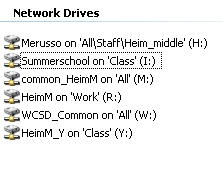
    When you login in school, you automatically connect to a series of network drives, which are available for various purposes. To see what drives you connect to, double-click My Computer on the desktop, and look for the following:

    Here is what each drive is for…

    (H:) – your home folder – for personal files, etc. that noone else has access to
    (I:) – summer school drive- for teachers and students in summer school to access and share files
    (M:) – common Heim Middle drive- for Heim staff to access and share files (no student access)
    (R:) – multimedia drive – where large files (movies, etc.) are stored and moved for class projects
    (W:) – common district drive – for district staff to share files (no student access)
    (Y:) – common staff/student drive – for all Heim staff and students to access and share files, including teacher dropboxes

  • Reflections on Tuesday at NYSCATE

    Conferences can be fun, educational, and tiring. When I woke up Tuesday morning at NYSCATE, all of this was in play. My session, Video in the Classroom to Captivate and Motivate (nyscate08g09), was scheduled for the first slot, and I was excited about it. I thought that after that, I could cruise through the last couple of sessions, maybe stay for the closing keynote, or get a head start on going home.

    The great news was that as the morning and afternoon progressed, things just got better and better, and I left only after the last words of the conference were spoken…

    My session went well – I’m a huge proponent of using video in the classroom, and was glad to share some of the things we do in our district with others. I think it was received well – there were many more things I wanted to share, but one hour goes by so fast!

    The session on the XO laptop, Little Green Monsters (nyscate08h08) presented by Brian Smith, Gary Stager and Sylvia Martinez was eye opening. I’ve known about and followed the XO for a long time now, but listening to them made me start to understand what it’s about. Pete Reilly summed it up best on his blog – check out his thoughts (and my comments there).

    Next up was the session on Web 2.0 Open Source Server Based Apps (nyscate08i05) by my friend Steve O’Connor. I met Steve last year by coincidence at NYSCATE as he and I presented in the same room. Steve has the angle on where we will be going in Ed Tech – we want to use the neat Web 2.0 apps, but are concerned about safety/security/privacy. His take on this is right on the money, I believe. Check out his blog and session wiki page for more info.

    Lastly was the closing keynote by Gary Stager titled, The Best Educational Ideas in the World. I’ve heard Gary on many occasions, but his presentation was so engaging and right on, that it did not matter how tired I felt – I left wanting more. I strongly recommend anyone who was not able to hear this talk, go listen to the podcast.

    The theme of NYSCATE 2008 was Discovering Your Digital Destination – and for me the pathway was opened. A BIG thank you to all of the people who helped make the conference a huge success!

    Image courtesy of leshoward on Flickr.

  • Reflections on Monday at NYSCATE

    So for a new twist, I’ve taken the notes from the sessions I attended on Monday at NYSCATE (from scraps of paper, my iPod touch, etc.) and dumped them into Wordle to see if there are any over-arching ideas I heard (or more likely, focused on).

    Here is the result:

    I think it’s too soon to really process this, but I like how it makes one think.

    The sessions I attended on Monday were:
    Rod Serling Video Festival (nyscate08d13)
    10 Standards-Based Formative Feedback Techniques for Your Classroom (briefly) (nyscate08d07)
    Prensky Keynote
    Where Teachers Learn, Where Teachers Teach (nyscate08e03)
    Knezak Keynote
    Leader to Leader (nyscate08f10)

  • Who Moved My Tools?

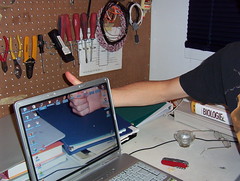
    First attempt at transparent screenWith credit to Spencer Johnson and his book, Who Moved My Cheese?, who moved my tools? The tools I’m referring to are the software tools that we rely on every day.

    I’ve had a great time at NYSCATE so far, in the hands-on workshops that precede the regular conference. I spent two rewarding days with David Jakes – first in the workshop titiled, Creating Immersive Learning Environments with Mixed Media, followed by, Cartography on the Cutting Edge. David is a terrific educator who knows how to harness the value of technology while still focusing on the core learning literacies that are timeless.

    In Thomas Friedman’s book, The World Is Flat, the world changed while we were not looking in terms of the global economy. Similarly, while we are busy using Word, PowerPoint, and every other installed program on our computers, the game has changed in that all of the software has moved to the web. There are many names for this – cloud computing, software as a service, browser-ware, etc. The bottom line is that the computer you type on is the vehicle that gets you to the software and content – all located on the web.

    We spent two days talking about and beginning to build powerful environments for students and teachers – and all the tools are web-based (see list here from David’s site). There are pros and cons to this, but the fact is that web-based tools allow for RSS feeds, html code that is embedable, and a multitute of uses and a re-uses. The internet connection and browser become the only necessary resources to communicate, collaborate, and be productive. In this light, is it a suprise that Google jumped into the browser market with Chrome?

    The web is the new slate on which we will be drawing our future – literally – how will we harness it and make it what we want it to be?

    Image courtesy of JcMaco on Flickr.

  • Off to NYSCATE 2008

    The annual state conference for educational technology, sponsored by NYSCATE, is this weekend. Just a few of the things I’m really looking forward to are…

    …weekend workshops with David Jakes. David does incredible work in his district, and is very motivating to work with. He’s doing the Sunday keynote as well.

    a ton of sessions on Monday & Tuesday – I’ve yet to pick the ones i’m attending, but there are lots of great choices.

    …the other keynote speakers, Marc Prensky, Don Knezek and Gary Stager – what a lineup 🙂

    …connecting and reconnecting with colleagues from my district and people met at previous conferences and online.

    my session on Video in the Classroom, which is Tuesday from 8:45-9:45.

    It’s going to be a fun, tiring, exciting time!

    Image citation:
    Reynolds, Peter. “Quest2008.” NYSCATE. 21 Nov. 2008 <http://www.nyscate.org/07/pix/quest2008.gif>.

  • Content Tech: Providing Feedback

    Content Tech
    Ideas for Technology Use in the Classroom

    Continuing our exploration of Using Technology with Classroom Instruction that Works, the next global question addressed is, “Which strategies will provide evidence of student learning?” The first strategy for this question is providing feedback.

    “…feedback is ‘the most powerful single innovation that enhances achievement.’” (p.41)

    This is not a rocket-science discovery, but the research (over 8,000 studies) points to the effectiveness of providing feedback.
    A series of technology tools are presented in this chapter to support providing feedback – I’m going to focus on two that have impact in any classroom and are under-utilized. In word processing tools, Microsoft Word has two options that can really improve feedback: tracking changes and readability scale.

    Students are very comfortable word processing documents, and can submit them electronically via a drop box. With the track changes tool, teachers or peers can review the documents, and provide comments directly in the file for the writer to review and respond to. Once the original author accepts or rejects changes, the final document can be viewed with or without changes visible. This option is also great so students can see the revision process in action. To turn on tracking, choose Track Changes from the Tools menu.

    Another tool in Microsoft Word is the Flesch-Kincaid readability scale. After doing a spell check, if the readability scale option is checked, a summary of the document comes up with the reading level. Students who use this tool can judge the level of their writing using the scale. To activite the readability scale, choose Tools | Options | Spelling & Grammar and check the box to display readability statistics. They will appear each time a spell check is run.

    Communication software can help with providing feedback as well. Blogs (such as this one you are reading) are great ways to post exemplars or student work and have students respond / critique / analyze the work. WITS discussion forums work well for this also, and can be set up so students can see or post to individual pieces. To set up the WITS discussion forums for your class, go to the class list section of WITS, pick a class, and choose the setup tab to activate the forums.

    I’ve left out some other technology tools that are very useful in providing feedback (such as the clickers), but if you try at least one of the above, you will have a very useful new tool at your disposal to provide effective, timely feedback.

    Book citation:
    Pitler, H., Hubbell, E. R., Kuhn, M., & Malenoski, K. (2007). Using technology with classroom instruction that works. Alexandria, VA: Association for Supervision and Curriculum Development.

    Image citation:
    A Koranic school in Cairo.. IRC. 2005. Discovery Education. 19 November 2008 <http://streaming.discoveryeducation.com/>