Author: Michael

  • Some Need 30 Minutes, Some Need 30 Years

    rubikscube

    Not too long ago, I was with my son in the local toy store helping him pick something he could spend some gift money on. Rather quickly he decided on a Rubik’s Cube. The flashbacks started rolling in…

    The first time Rubik’s Cube was all the craze (circa 1980), I had one like everyone did. I was good at solving one side and maybe a second side, but that was about it. I could not get my head around the sequences (which I now understand are algorithms) to successful completion. I became quite proficient at one of the alternate solutions, namely popping out the pieces and assembling the cube solved. This worked for me and I was quite happy about it, too.

    Fast forward to 2009 – Rubik’s Cube now comes with a little “cheat sheet” with directions on how to solve the cube. This little pamphlet is deceiving – small does not equal simple. To solve the cube, you have to understand the sequence of steps, carefully execute the algorithms (which vary depending on the current state of the cube), and trust yourself to move forward despite the disarray the cube may appear to be in. Over the course of a few days, numerous hours, and much chanting aloud of sequences such as “right inverse, down inverse, right, down,” I did it! It was one of those personal victories that you want to shout about from the rooftop, but no one really cares all that much about. I reveled in my personal milestone, and carefully (and still very slowly) repeated the victory a few times.

    So what is the moral of this story? We are all in various stages of learning throughout our lives. We are all good at some things, and not so good at some things. We all need various levels of support in our quest for learning. However, there is NOTHING impossible given the right environment with regards to learning. I do not think I have inherent ability with regards to the Rubik’s algorithms, but now that I understand what they are, I can (with much practice) reproduce them and use them as a foundation for other experiences. Could I have done the cube without specific, clear directions and answers? Most likely not; Have I learned more than I ever would have otherwise? Absolutely! The students that sit in our classes every day have some predisposition to either “get it” or “not get it,” regardless of the particular content area. How we choose to support them is central to their success.

    All students have to get from point a to point b in their learnng…some need a detailed map, and some just need us to stay out of the way. For me, it only took 30 years and a clear set of directions to understand Rubik’s algorithms. There are some who inherently understand them within a few minutes. I’m jealous of them, but I don’t care, because I can do it myself now. 🙂

    Maybe I’ll try one of the 4X4 Rubik’s Cubes next…

    Epilogue for the 21st Century: I was delighted that the cube had that cute little pamphlet with instructions. I painstakingly worked through it, re-reading many steps for clarity. I shared my experiences with others: their response to my endeavor? They looked up the solution on YouTube. I guess I still have a glaring ability to be a dinosaur…

    Photo courtesy of Caramdir on Flickr.
  • Staff Development Focus for Next Year

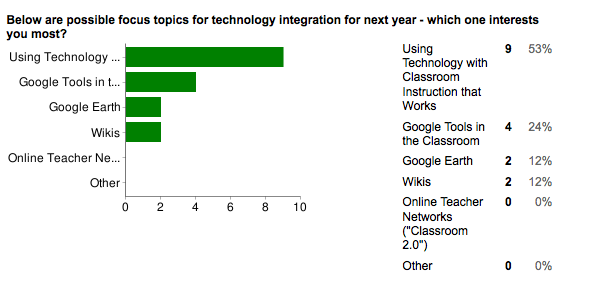
    Thanks to the staff who responded to the brief survey I sent out (it was easy & slick to do using a Google form 🙂 ). While response wasn’t huge (25%), it is the end of the year and there are a million things to get done. I think the sample is big enough to get a good sense of how to progress. So what are people interested in focusing on? Check it out…

    sdfeedbackI selected the topics for the survey based on things I’ve been working with and ideas “out there” in the world of educational technology. No scientific formula – lots of gut instinct and intuition, spiced with as much input as possible.

    Based on the feedback, here is the prioritized focus of how I’ll frame conversations with the technology committee and team meetings for 2009-2010:

    1. Using Technology with Classroom Instruction that Works – I think people enjoyed the book study here this past year on Point A to Point B because the focus is on improved learning with technology, not just about the technology. I’m looking forward to some fun and challenging conversations on implementing ideas from the book.
    2. Google Tools in the Classroom – Google continues to produce a wealth of resources for learning. While a little voice in my head continues to worry about Google controlling too much (see my kind-of-paranoid post from 2007), you can’t argue that there are some amazing resources (see my posts after attending a BOCES workshop here, here and here).
    3. Google Earth – Speaking of amazing resources, Google Earth is going to be where I spend most of my personal learning time. Every time I open up GE, some new layer, model, or other content blows me away. The experience we had in Mrs. Calandra’s ELA class with the Google Lit Trip is just one example of the power of Google Earth. I’m in the early stages of developing some sort of GE daily tidbit for the classroom – stay tuned on this one. On a personal soapbox note, as I delve into GE more and more, a thought keeps coming to me (and I am by no means the first to say this): Given the resources available in Google Earth, there is no acceptable reason for students to be deficient in geography (provided students and teachers have quality access to Google Earth). OK, that’s the end of my soapbox – let’s dig in with Google Earth!
    4. Wikis – While the response to wikis was not great, I believe part of that is due to the fact that many still need to understand what a wiki is and how it can be implemented in the classroom (though we’ve all used Wikipedia…) . The district has moved us forward in this realm as we have just purchased a wiki site through Wikispaces.

    That is certainly enough to keep us busy, but at the same time, one person brought up an excellent point. It’s not always about what’s new and what’s hot – it’s about getting better – here is the comment:

    “I know we have training in many areas, however, I feel like I need more to get all the use out of a particular tool. Something like getting more training after a year of having a Smart Board to go to the next level. That may even carry on for a couple of years. Just a thought (and not only Smart Board use other things as well).”

    That was well put, and will be part of the mix of what we do in the upcoming year. Once again, thanks to everyone who responded, and have an enjoyable summer!

  • Thanks, Crew

    We had a great year with video announcements. Many of the crew are 8th graders, and have been involved for 3 or 4 years. It’s always exciting for our graduates to move on to high school, but its also sad b/c they’ll be gone. Here is a little tribute to Aaron, Brianna, Caroline, Chris, David, Erin, Haley, Jake, and Jenni. We’ll miss you at Heim Middle!


    Creative Commons images courtesy of the following users on Flickr: Joriel “Joz” Jiminez, Ken@Okinawa, fd, Jess J, Gam Hoyo, Xiol, chalkdog, s.o.f.t., verymissberry

    And the music? Well that would be by one of my favorites: credits-sounder

  • TTT: Return to Editing Point in Word

    Tuesday’s Technology Tip
    Little ‘bytes’ of information to hopefully make your computing life easier.

    When you open a Word document, it opens at the beginning of the document. If you want to get back to the spot in the document where you last edited:

    • Press Shift + F5 to return to the last editing point

    This is the last TTT for this year – look for a new round of tips this fall!

    ∞∞∞∞∞∞∞∞∞∞∞∞∞∞∞∞∞∞∞∞∞∞∞∞∞∞∞∞∞∞∞∞∞∞∞∞∞∞∞∞∞∞∞∞∞

    This tip is taken from Nancy Wilhelm’s great Tips & Tricks newsletter. A new issue appears monthly, and can be found on the homepage of WITS. Look in Public Documents | Common for Entire District | Tips & Tricks | Newsletter.

  • Content Tech: Google Lit Trips Followup

    Content Tech
    Ideas for Technology Use in the Classroom

    A few weeks back in Content Tech we looked at Google Lit Trips as unique way to study literature through geography. In Mrs. Calandra’s English 9R class, we used the Lit Trip as part of their study of The Odyssey by Homer. Reading this book can be a daunting task, and the Lit Trip was a great tool to help students’ understanding. The project went very well, and here is what Mrs. Calandra has to say about it…

    “The Google Earth Lit Trip was really awesome! Not only was it cool and interesting for the students, it also genuinely increased their comprehension of the text, as evidenced by the very high final test scores. The Odyssey is a challenging piece of literature, both in terms of its language and its content; using the Lit Trip enabled students to understand Odysseus’s journey much better. Overall, benefits of the project included learning to use the technology effectively, better comprehension of the story, and increased understanding of the time period, culture, and geography of that area. I wouldn’t want to teach The Odyssey again without using the Google Earth Lit Trip!”

    Each student was assigned a book (in The Odyssey, each chapter is called a book) and the product each created was a placemark in Google Earth which included:

    1. A synopsis of the book
    2. Responses to higher-level questions regarding the book
    3. A picture selected by the student to represent the book (selected from Creative Commons Flickr images through FlicrStorm)

    Specific directions for how students accomplished the above are in a wiki page (a link to that page is later in this post). The best way to see the student work is by downloading the .kmz file which contains all of the placemarks they created. You’ll need Google Earth installed on your computer to view this file. Click on the file below, choose to open it with Google Earth, and enjoy their work.

    9r-odyssey (click to download file)

    Additionally, this was my first time ever reading The Odyssey. I was enjoying the work the students did so much that I took some time to create a movie interpreting their work. The words and pictures in the video are from the students and the audio and sequencing was selected by me. Check it out…

    Get the Flash Player to see this content.

    So how did we manage the project? Students read 1-2 books per day in class and for homework. I created a wiki page with directions (click here to see that wiki page) and then worked with the first 4 students on creating a placemark. Those students then showed the next group how to do the placemark, and so on. So over the course of 2-3 weeks, the group helped each other create their own version of The Odyssey Lit Trip. Mrs. Calandra began each class with a review of the Lit Trip in Google Earth, and then a presentation of placemarks by students. The final product is a very rich experience that really helped the students understand The Odyssey at a whole new level.

    I’m looking forward to embarking on more Lit Trips in the future!

    A big hat tip to David Jakes for his workshops that helped push me to bring this project together.

  • TTT: Outlook Quick Permanent Delete

    Tuesday’s Technology Tip
    Little ‘bytes’ of information to hopefully make your computing life easier.

    In Outlook, when you delete a message, it goes to your deleted items folder. You then have to empty the deleted items to free up space for mail. You can delete mail items permanently without having to do this 2-step process. To immediately delete a message for good:

    • Highlight the message you wish to delete
    • Press Shift-Delete
    • Click Yes to confirm you wish to permanently delete the message

    Poof! No more clogged Deleted Items folder!

    ∞∞∞∞∞∞∞∞∞∞∞∞∞∞∞∞∞∞∞∞∞∞∞∞∞∞∞∞∞∞∞∞∞∞∞∞∞∞∞∞∞∞∞∞∞

    This tip is taken from Nancy Wilhelm’s great Tips & Tricks newsletter. A new issue appears monthly, and can be found on the homepage of WITS. Look in Public Documents | Common for Entire District | Tips & Tricks | Newsletter.

  • Content Tech: Google Search and the Wonder Wheel

    Content Tech
    Ideas for Technology Use in the Classroom

    You may be noticing a Google theme to Content Tech recently…I’ve been attending a BOCES workshop on the multitude of Google tools available, and the list continues to grow.

    There is a new search tool recently released titled Wonder Wheel, that provides a visual representation of search results. This can be really helpful for students trying to understand a topic.

    Try this…

    • Think of a topic you might ask your students to research
    • Type the search terms into Google
    • When the results come up, directly under the Google logo, click Show options…

    screenhunter_01-may-20-1409

    • In the left sidebar, near the bottom, click on Wonder Wheel

    screenhunter_02-may-20-1409

    Google displays a visual representation of the search terms, with related topics around it. Search results are on the right side. Click a related topic, and the wheel will re-center, with new related topics surrounding it.

    (click image to enlarge)

    screenhunter_03-may-20-1410

    This tool could provide some helpful visual cues as students do their research. Notice that there are some other options for search results in addition to the Wonder Wheel!

  • Content Tech: Google Advanced Image Search

    Content Tech
    Ideas for Technology Use in the Classroom

    Following up on the advanced Google search tip last week, an advanced image search in Google presents some very useful filters. Today we’ll look at one way to do an advanced image search to find copyright-free images.

    Items produced by the U.S. Government are free from copyright (since we all pay for the government with taxes, we get to use the stuff 🙂 ). This includes images found on government websites. Students looking for images that are OK to use can do an advanced image search and restrict the results to government websites (sites that end with “.gov”).

    To search for images at government websites only:

    1. Go to Google, click on the link for Images, and then click on Advanced Image Search (it’s to the right of the search box)
    2. On the advanced image search page, type in the search terms in the top box
    3. Near the bottom of the search page, in the field that reads “Return images from site or domain,” type .gov (include the dot before gov)
    4. Click on Google Search, and the results you get should only be images from government websites.

    Notice in the Advanced Image Search page that there are other filters for searches including type of image (clip art, line drawings, etc.), file types (.jpg, .gif, etc.) and image size. These filters can be a great help in improving image search results.

    googleadvancedimagesearch

    (click to enlarge)

  • TTT: Quick PowerPoint Slideshows

    Tuesday’s Technology Tip
    Little ‘bytes’ of information to hopefully make your computing life easier.

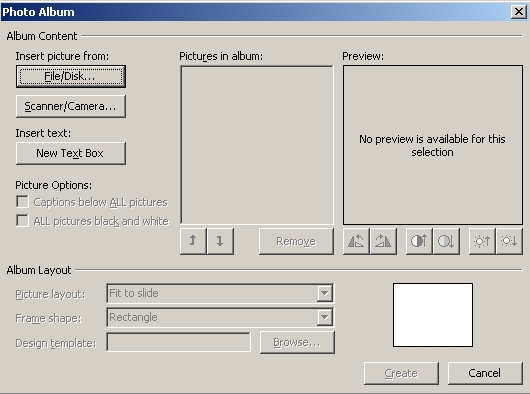
    With PowerPoint’s Photo Album tool, you can create a quick slide show from a group of digital pictures. To do this:

    • In PowerPoint, select Insert | Picture | New Photo Album…
    • Browse to the folder with the pictures you wish to insert (you can select multiple pictures by holding down the shift key or control key)
    • Change the order, rotation, or brightness/contrast of individual pictures in the preview window
    • Specify picture options including captions and black & white
    • Specify the look of the album you want under the Album Layout section
    • Click Create, and you will have a quick, nifty presentation with the pictures

    photoalbum

    ∞∞∞∞∞∞∞∞∞∞∞∞∞∞∞∞∞∞∞∞∞∞∞∞∞∞∞∞∞∞∞∞∞∞∞∞∞∞∞∞∞∞∞∞∞

    This tip is taken from Nancy Wilhelm’s great Tips & Tricks newsletter. A new issue appears monthly, and can be found on the homepage of WITS. Look in Public Documents | Common for Entire District | Tips & Tricks | Newsletter.

  • Content Tech: Google Advanced Search

    Content Tech
    Ideas for Technology Use in the Classroom

    We all use Google to search for information to help us teach. Have you tried an advanced search to get more of what you are looking for? For example, do you want to find PowerPoint files related to an upcoming unit? What about flash video clips to use in a notebook file?

    If you want to look for PowerPoint files, then try this…

    1. Go to Google, and click on the link for Advanced Search (its to the right of the search box)
    2. On the advanced search page, type in your search terms in the top box
    3. In the middle of the page, click on the File Type drop down and select Microsoft Powerpoint (.ppt)
    4. Click on Advanced Search, and the results you get should be PowerPoint files related to your search.

    If you want to find flash video files to use with your curriculum, do an advanced search as above, but for the file type, choose Shockwave Flash (.swf) as the file type.

    As you browse around the Advanced Search page, you will notice many options for fine-tuning your search.

    Happy Googling!

    advancedsearch

    P.S. I’m attending a BOCES workshop about Google in the Classroom – many new ideas, tips and tricks to share!