Author: Michael

  • How the iPad has Changed My Game

    Since I purchased an iPad a couple of months ago, I have been really enjoying using it and seeing how it fits into my work and play flow. My kids really enjoy using it to see how it fits into their game playing flow. Students in school enjoy seeing how it fits into their before-school, working, hanging-out, doodling flow. I thought the iPad might be a popular item, but I had no idea what temporary rock-star status I would have simply by having one. I knew something was up when, while picking up food at a McDonald’s drive-thru, the nice young lady at the window looked in the back of the car where my son was playing on it and screamed, “Is that an iPad?!?!?! Cool!!!!

    What has changed? I now have a small form-factor device that allows me to be in a meeting, workshop, or other group environment and be able to read documents, take notes, and research supporting information on the Internet, without having an intrusive laptop screen sticking up. I can easily pass the device to someone else to use as if it where a piece of paper, not a piece of equipment. This may seem like a small deal, but to me it really is a big deal. Now when I prepare for a meeting or conference, I do not print out copies of documents, I just make sure I have them loaded on the iPad.

    A couple of things make this setup even better. The iPad relies on touch, obviously, but there are times when some type of pen would be handy. I found this out when I was trying to sketch a diagram at a conference a few weeks ago. Drawing with your finger is not comfortable when trying to handwrite. Enter the Pogo Sketch from Ten One Design – this handy stylus has a capacitive tip which allows you to use it on the iPad (and other touch screens) as if it were your finger. Another item that will help my workflow is an app that allows you to markup documents. Often in meetings you want to write notes on various pages – I have browsed the App store and there definitely are solutions for this – I just have to pick one and run with it.

    I knew things had changed for me a couple of weeks ago when I was looking for a book. At the Summer School Conference for Administrators, a principal from Roscoe did a great workshop that related leadership to lessons from To Kill a Mockingbird. Having never read the book (amazing, huh?), I turned to the iPad to purchase/download  it. I wanted to be able to read it on the fly among the many other things I do on the device. Interestingly, I could not find an electronic version in the iBook store, Kindle store or anywhere else. I *gasp* resorted to going to our school library to checkout a *gasp* paper copy! Don’t worry – I’m not saying that I don’t want print books – it’s just that there is now an option that blends multiple media into one place, and I’m hooked.

    Let me put in the disclaimer now that while the iPad has a ton of possibility, it is by no means perfect. Do some things drive me crazy? Sure – the whole Flash-non-support deal is frustrating since there is so much Flash on the web. The App store is huge, but that results in thousands of proprietary ways to get something done, on a device that is very proprietary. I am very excited that Google announced a tablet, and if the One-Laptop-Per-Child concpet tablet ever gets going, that will be awesome also. All I’m saying is that right now, the iPad’s positives definitely outweigh its negatives.

    So now I wonder, if this has really changed my game, how might it change the game for a student who is able to go through the school day with it? One-to-one initiatives are popping up all over (finally), and the iPad may be one solution for students. An iPad is a consumption device more than a creation device (we still need laptops or desktops), but the types of input and resources available make it a real possibility for student use. I’m going to try an experiment this week with a couple of students and let them take it to all their classes for a day. I’m really interested in how they think an iPad might (or might not) make their learning better. Hopefully I’ll convicne them to share there thoughts here next week. Stay tuned…


  • 21st Century Classroom

    As part of a class I am taking at Canisius College right now, we had to create a presentation on building a 21st century classroom. Here is my project, done in VoiceThread. Its about 15 minutes long – enjoy it if you like!

  • Touch This – Tactile Learning and Technology

    A few weeks back when the iPad became available for pre-order, I investigated and decided not to order since my current OS does not support it. Getting the iPad would send me into that unforgiving and expensive upgrade loop where I would have to get a new OS, and hence a new computer, etc. just to support the device. Not that I did not want an iPad – having an iPod Touch, I know how different a device it is, and the thought of the new form factor in the iPad hits home with me.

    Fast forward to this weekend – watching the early reviews and wondering, I took an innocent trip to the local Apple Store “just to check it out,” and yes, I came home with an iPad. A brief conversation and help from an Apple Store employee allowed me to activate the iPad in the store, so I can use it to do whatever I want wirelessly with no immediate need to upgrade my home computer. The only thing I cannot do is sync to my computer to download pics, videos, etc. but I can access all important data via the web, and can download all the apps I need via my iTunes account.

    So, what is the game changer in this device compared to any other? Simple – just as with the iPhone and iPod Touch – it’s the tactile interface. You use a third sense – touch – to interact with information, knowledge, and learning. We all know that media helps learning – audio and visual stimulus are key components. However, when you add the kinesthetic mode as well, that opens up a whole new layer of input to the mind. When I can spin the world with my finger in Google Earth, zoom into a video about the Haiti earthquake, and physically drag layers of seismic images, it is a very different learning experience.

    My initial reaction to the iPad and the tactile input has made me reflect on why I have always felt the Smart Board brand interactive whiteboard is a key technology tool. You can argue until you are blue in the face about which brand of interactive whiteboard provides the best bang for the buck. There are also very valid arguments about how an interactive whiteboard used poorly is an expensive overhead in the front of the room. Despite this, at the end of the day, the Smart Board allows you to take your finger and literally interact with the world. That being said, the Smart brand suddenly has a huge challenge ahead as there are millions of people who now expect multi-touch surfaces, something the Smart Board has not been able to provide.

    So what is it about the iPad that makes such a difference? The size and form factor. This may be just my personal preference, but it just feels right. It can be tucked in a sleeve and hidden, taken out for research, used to watch media, and a host of other uses that support learning and productivity. The iPad is certainly not the first tablet on the market. I’ve thought for many years that the tablet could really help the classroom, but nothing so far in this category has made any difference. I think that the iPad will, at the very least, push this category of learning tool very far ahead.

    Whether or not it is the iPad, the Smart Board, or some other device, what I think is fundamental is tactile interaction with technology so learning is literally an extension of your hand. The more senses involved in learning, the better. It will be a while before the iPad will give off smell or taste, but we’re moving in the right direction :-).

    If you’ll excuse me, I have to go buy a new computer…

    Creative Commons image courtesy of Maddy Lou on Flickr.

  • Teaching and Connecting with Students

    For our staff development day on Friday March 19th, I had the opportunity to present to the faculty alongside Mr. Jachlewski, our Assistant Principal, on the topic of teaching and connecting with students. The idea for the topic (and the day overall) was generated by Mrs. Keipper, our Principal, after viewing the video Did You Know 4.0 about the social media revolution underway. Mr. Jachlewski put together the framework and bulk of the topics. I added many of the technology aspects and compiled the data presented.

    Our goals for the presentation were to:

    • Raise awareness about social media
    • Cause faculty to reflect on their teaching
    • Cause faculty to reflect on the future

    We spent some time talking about what it means to be a teacher, what it means to be a student, how to engage students, and what the world of the student is like outside of school. We then spent a little time looking at what it means to be connected, what a student of connectivism looks like, and the role of the teacher in connectivism. Next we looked ahead and considered the implications of using the computer that most students have – the mobile phone – as a tool in the classroom. We ended by talking about the “why” – why does this matter? Here is the presentation file we used:

    This slideshow could not be started. Try refreshing the page or viewing it in another browser.

    We raised lots of questions, and did not intend to provide answers. We are in the midst of a technology revolution, and need to consider what to do. There are pros and cons to social media and its place in the classroom. For example, students are used to multi-tasking on numerous activities when at home and connected to their computer and cell phone. In school, it is much more necessary to stay focused on one topic at a time. Does this mean the school is out-of-touch with how students learn or is school the only place left where they learn this skill? Where does social media fit into the picture? Many schools are trying to leverage the impact by using sites like Ning to have school-centered social networks. Does this promote learning or promote socializing?

    This discussion fits right into where we are at with our Technology Committee. We have come to the end of a 5-year plan that focused on placing hardware tools in teachers’ hands. We are in a good place – computer labs, mobile labs, projectors, interactive whiteboards, clickers, etc. The next logical place to go in hardware is some form of 1-to-1 computer initiative for students, but there is no indication if/how/when that might happen. So where do we go for our vision for technology for the next 5 years?

    What are your thoughts, arguments, comments or other reactions to these topics?

    In a simple two-word question, What’s next?

  • Why are organizing and brainstorming tools hard to integrate?

    The research is pretty clear. Organizing and brainstorming tools provide students with support to structure their thoughts and learning. I’m thinking specifically about Inspiration software since that is something we have had for years. It continues to be one of the most useful and least used tools we have. I count myself number one in non-use. Anytime I’m beginning a project for myself or for use with a class, I do not break out Inspiration and organize my thoughts. I use a word processor or other format to put things together. For some of the research projects students do, we have included Inspiration as part of the organizing process, and then converted to a word processing document. When the time ogre rears its ugly head, Inspiration is the first thing to get tossed out of the project.

    Why is this?

    Organizing is a top issue with students crafting their writing. Inspiration is the perfect tool to assist with this. Is it because Inspiration is a separate program that is not the final product? Are the benefits not worth the time to learn it? Jamie McKenzie always publishes his writing with diagrams that show his thinking and it is very informative. Should we have students produce writing that includes diagramming to enhance their work? Tools like Inspiration are perfect to help promote the Better Answers writing process we use.

    So, where am I at with this? Let’s see… (click & drag the diagram around)

    Well, that pretty much clears up my thinking…organizing and brainstorming tools take time, but the benefits definitely outweigh the challenges. The key is finding the right tool to facilitate the process, be it Inspiration or Bubbl.us (used above) or something else. Clear and thoughtful communication is difficult – tools such as these can really help.

  • Communicating with Prezi

    Prezi is a web 2.0 presentation tool that allow for much more control of how material can be presented visually. The easy-to-use interface lets you create interesting dynamic content very quickly. Courtesy of Twitter, I just learned of this short slide show demonstrating how Prezi can be used in the classroom:

    http://www.ideastoinspire.co.uk/prezi.htm

    My initial reaction to Prezi is that it is just another slick visual tool that will distract rather than enhance. Used well, that probably won’t happen and there are some definite advantages to what Prezi has to offer. I guess I’ll have to create a few and see how it goes…

  • The Research Process: Simple Wikipedia

    February begins a big push for research projects at school. 6th grade students learn about the Middle Ages, while 5th graders are researching a famous person.

    With all the great new tools for research and inquiry, I sometimes long for the days of index cards, an encyclopedia, and a few books. (not really…don’t worry)

    When a student sits down to research, they literally have the world at their fingertips to learn from. Google alone will deliver far more than a ten year old could process in a lifetime. Organizing and brainstorming tools like Inspiration and text editors like Microsoft Word are invaluable.

    The fact is that kids still need to read, process and organize information. It does not matter if they have index cards and books or a word processor and the web. If they cannot interpret what they read into their own ideas, it does not matter how pretty the product is. Sometimes I wonder if all the new technology tools mask this underlying need.

    Wikipedia is an awesome tool when used well. One of the issues of this collaborative tool is that the language can be far above the readability for a young student. Enter a sister project of Wikipedia, aptly named Simple Wikipedia. The goal of Simple Wikipeda is to present the same content as Wikipedia, with simpler words. Not simpler concepts necessarily but simpler words. It is also geared for English Language Learners.

    It is easy to see if there is a Simple Wikipedia article on a topic. Do a search at Wikipedia, and after finding an article, change the “en” part of the web address to “simple” to see the Simple Wikipedia version of the same article. You could of course just do a search at Simple Wikipedia. Simple Wikipedia has a much smaller but growing list of articles.

    As an example, check out the article on Frank Lloyd Wright at Wikipedia and then Simple Wikipedia.

    Simple Wikipedia is one way to help tame the flood of information available to students today.

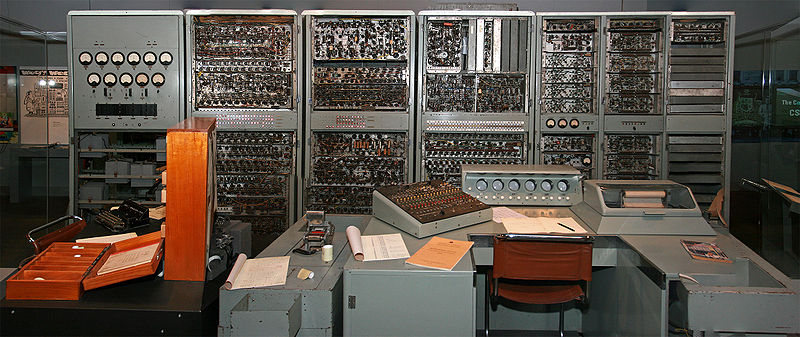
    800px-CSIRAC-Pano,-Melb.-Museum,-12.8.2008

    CSIRAC (Council for Scientific and Industrial Research Automatic Computer), Australia’s First Computer (1949)
    Creative Commons image from the Wikimedia Commons

  • Resistance IS Futile!

    A little over two years ago I wrote a post titled, Is Google Big Brother, right after attending the NYS educational technology conference, NYSCATE. Basically I was concerned about how a for-profit company may use personal data in ways we are unaware of.

    Now, looking at my Google Dashboard to check out the Google services I use, what I see is:

    Buzz, Calendar, Contacts, Docs, Gmail, iGoogle, Reader, Tasks and 15 other services from the Google mother ship.

    So much for being paranoid – while I was not watching, I was assimilated. Hook, line & sinker. I rely on many Google services to manage my daily life (especially Calendar, Tasks, and Gmail). All the work for the degree I’m working on in educational administration is produced, shared and stored in Google Docs. While I have resisted the Twitter rage for various reasons (though I did recently sign up for a Twitter account), as soon as I saw Buzz, I jumped on board. Maybe I was just finally ready for the microblogging world – who knows. As with many of the Google services, Buzz seems to put lots of pieces together in the right way.

    The Google cloud rocks – I will still continue to read the privacy policies and have offline versions of critical documents – but you can count me one of the Google Army now.

    Resistance IS futile!soldiersCreative Commons image courtesy of zsoolt on Flickr.

  • This One Got My Attention…the XO-3

    Soak in this image for a few moments…
    xo3-fuse-1

    and now this one…

    xo3-fuse-2

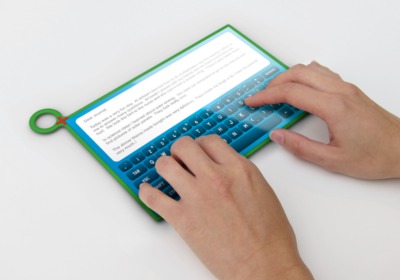
    This is the next-generation concept design from the One Laptop Per Child team. This device does not exist yet, but the XO-3 as it is called simply looks awesome. I’m not sure what is the most appealing part – the slim design? The onscreen virutal keyboard? For many years I’ve been in the camp that tablet computers are the wave of the future (see this post). Like many, I’ve been disappointed by the design and/or price of current offerings.

    It’s impossible to make judgement without being able to actually use this device. On appearance, it looks like this tablet could be the one that fills the mobile-tactile-interactive media device need.

    What if it came in at the projected price of $75? What if it was in the hands of EVERY child in EVERY school IN THE WORLD?

    It is still just a concept device, but as good concepts should be, this one just demands attention. I’m in…

    See and read more about the XO-3 on the Laptop.org blog (images courtesy of that site).

  • Where in the World is Santa?

    Forget about simply imagining where Santa is on his busy night delivering presents. Thanks to the folks at NORAD, in partnership with Google, you can track Santa in Google Maps and/or Google Earth.

    NORAD has been tracking Santa for over 50 years now. Check out this article at CNN on how the government’s primary missile defense operation got into the business of keeping up with Mr. Claus in the first place (it is a very sweet story).

    In 2007, Google partnered with NORAD to provide real-time (Santa-time?) coverage of where the jolly man is, complete with YouTube updates from sightings around the world.

    I’m getting more and more hooked on the capabilities of Google Earth, and just watching Santa’s journey for a little while, I learned so many more things about our world. My kids were captivated, and without realizing it, got a great geography lesson. Way too fun!

    No matter what religion you celebrate…Happy Holidays!

    nts_logo09_download