Author: Michael

  • TTT: File Extensions

    Tuesday’s Technology Tip
    Little “bytes” of information to help make your computing life easier.

    All computer files use a 3-letter suffix to help the computer figure out what type of file it is. When saving, the file extension should be created automatically for you. It is a good habit to make sure your files have the extension on them, especially when saving and opening betwenn Windows and Macintosh. Some of the more common file types are:

    .doc (Word DOCument)
    .xls (EXceL Spreadsheet)
    .isf (InSpiration File)
    .exe (EXEcutable file – these are program files that run in Windows)
    .jpg (Joint Photographic Group – these are picture files from digital cameras, etc.)
    .gif (Graphical Interchange Format – these are graphic files also)
    .wrc (Who Really Cares??? -just checking if you’re reading – of course you care 🙂 )

    If you run into a situation where a file does not open like you expected (or with the correct program), check out the file extension to see if it clues you in to the issue.

  • Content Tech: Setting Objectives

    Content Tech
    Ideas for Technology Use in the Classroom

    Carrying on with a focus on the book Using Technology with Classroom Instruction that Works, the first planning question is: What will students learn? There is one instructional strategy associated with this question, setting objectives.

    “…when students are allowed to set some of their own learning goals, their motivation is higher than when they pursue only teacher set goals…” (p.18)

    Taking the time to have students involved in the learning goal process can be a challenge, especially when teachers often know exactly which goals will help the most. As the quote above clearly says though, student engagement increases when they have the time to reflect and provide input into their own learning (something that is true of adult learners as well).

    Most of the tools presented in this section represent technology making processes more efficient (e.g. word processing a KWHL chart, emailing a newsletter). One that stands out as a real enhancement of the setting objectives strategy is to use organizing and brainstorming software with sound recording capability to create a audio/visual KWHL chart.

    We have Inspiration software on all of our computers. Consider the possibility of creating a template in Inspiration with the topic of your next unit on it. As a pre-assessment of understanding, ask students to rapid-fire the KWH pieces of the diagram, AND record a sound clip for each of those items providing more detail or an example. This multi-modal feedback would activate more input from the students and possibly reveal more understanding or lack of understanding.

    The authors point out a challenge with using software such as Inspiration since most students do not have it at home to use. This relates exactly to the post I wrote a few months ago about making software accesible. A solution in this case would to use an open source solution, such as Cmap. Using Cmap would break down the walls between school and home.

    For the next Content Tech, we’ll be looking at the instructional strategy of providing feedback.

    Book citation:
    Pitler, H., Hubbell, E. R., Kuhn, M., & Malenoski, K. (2007). Using technology with classroom instruction that works. Alexandria, VA: Association for Supervision and Curriculum Development.
  • Content Tech: Using Technology with Classroom Instruction that Works

    Content Tech
    Ideas for Technology Use in the Classroom

    We are familiar with Marzano’s research in Classroom Instruction that Works. In 2007, MCREL released a supporting book, Using Technology with Classroom Instruction that Works. What is terrific about this book is that it puts technology in the proper place – as a tool to support research-proven instructional strategies.

    I’m going to take the next series of Content Tech posts to highlight the book, and discuss ways it can help us specifically in our setting here at Heim. I invite you to provide feedback and conversation through comments here or f2f discussion.

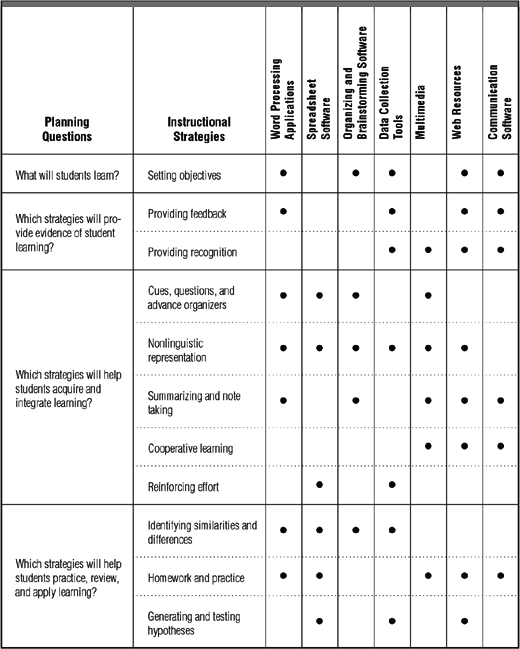
    The introduction frames how technology fits in, by providing planning questions for instruction, instructional strategies that work, and then categories of technology available.

    The four planning questions for instruction, and the associated Marzano strategies are:

    • What will students learn?
      • Setting objectives
    • Which strategies will provide evidence of student learning?
      • Providing feedback
      • Providing recognition
    • Which strategies will help students acquire and integrate learning?
      • Cues, questions and advance organizers
      • Nonlinguistic representation
      • Summarizing and note taking
      • Cooperative learning
      • Reinforcing effort
    • Which strategies will help students practice, review, and apply learning?
      • Identifying similarities and differences
      • Homework and practice
      • Generating and testing hypotheses

    Note that 2 of the original 9 strategies have been split above in order for them to be addressed more specifically.

    Technology to support the above questions/strategies have been broken into the following seven categories:

    • Word processing applications
    • Spreadsheet software
    • Organizing and brainstorming software
    • Multimedia
    • Data collection tools
    • Web resources
    • Communication software

    The following matrix shows which categories of technology best support which strategies (click to enlarge):

    I’ll be exploring each of the strategies and supporting technologies in coming weeks. What initial thoughts/comments do you have about looking at technology this way?

    Image citations:

    “Book Cover.” Association for Supervision and Curriculum Development. 5 Nov.
    2008 <http://shop.ascd.org/ProductDisplay.cfm?ProductID=107025>.

    “Matrix.” Association for Supervision and Curriculum Development. 5 Nov. 2008
    <http://www.ascd.org/ASCD/images/publications/books/pitler2007_fig7.gif>.

  • TTT: Quick Launch Bar

    Tuesday’s Technology Tip
    Little Tips to Hopefully Help Make Your Computing Life Easier

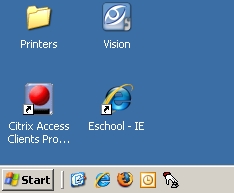
    On District computers, you do not have control over the desktop or Start menu. You can create and mange icons in the Quick Launch Bar, found right next to the Start menu:

    You can drag a shortcut for a program, a folder or a file to the Quick Launch bar, for easy access to those items later.

    Try this to create a shortcut to your server folder:

    1. On the desktop, open My Computer
    2. Click on the icon for your server folder (), and drag it down to the Quick Launch area. If you drag to the correct spot, you will see a vertical bar appear, indicating you can drop a shortcut. If you drag to an incorrect spot, you will see a “Do Not Enter” symbol.
    3. If successful, your Quick Launch bar should look like this:

    Happy shortcut-ing!

  • Content Tech: Discovery Education Streaming

    Content Tech
    Ideas for Technology Tools in the Classroom

    Our video streaming service, Discovery Education Streaming, has a wide array of media available to support every content area.

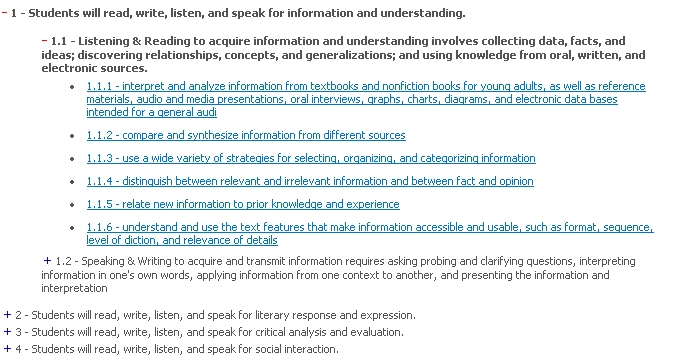
    One way to view available media is by browsing by New York State standard. After logging into your DE Streaming account, scroll down on the left side of the page to the Curriculum Standards Search. Choose New York State, Learning Standards, followed by your subject, grade level, and year (most are based on the 1996 standards).

    At first what appears looks like just a listing of the standards themselves. If you click on the + to expand the standards and performance indicators, you will then be taken to a page with media that supports the particular indicator clicked on.

    For example, browsing the ELA standards regarding reading comprehension reveals the following (click to enlarge):

    The DE Streaming service allows for many different ways to search for content – this is just one way you can discover resources for your class.

  • TTT: WITS Locker

    Tuesday’s Technology Tip
    Little Tips to Hopefully Help Make Your Computing Life Easier

    Staff has access to the same locker that students do in WITS. To attach something to your WITS Locker, do the following:

    a1: Click the “Personal” tab
    a2: Click “My Documents” on the left
    B: Click on “Add Document”
    C: Click “Browse” in the window that opens up and find your file on the computer
    (also note the allowed file types for upload are shown here)
    D: Click “Upload” to put the file in WITS
    E: It will now appear in your list of files. To Download it click on the filename.
    F: If you are done with a file on WITS you should delete it with the “red X icon”

    (click image to enlarge)

    You may attach something to your locker from school to work on at home, or attach it from home to bring to school. Your files will not update as you work on them. You must save them on the computer you are working on and then place them back in your locker when you are done by following these instructions again.

    Hat tip to Chris Poole at Transit for the directions and graphic!

  • Way too fun!

    So this is the first post from my iPod touch. A trip to the App Store & I downloaded the free WordPress app. After a few configuration settings, I can post and manage the blog from my shirt pocket!

    This device is a game changer in portable computing…

  • Content Tech: LOTE Proficiency

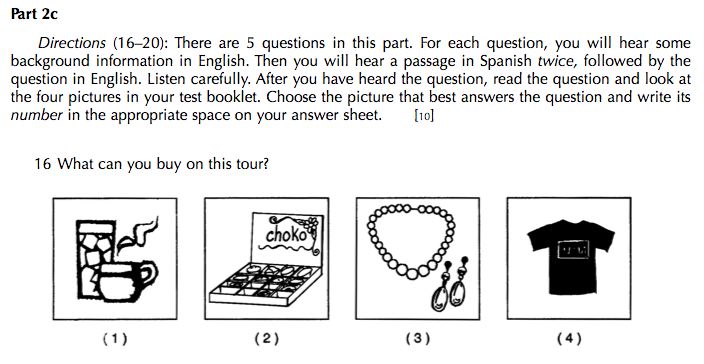
    En 2007 el examen de idioma español tiene la siguiente pregunta (click para ampliar):
    The distractor for this type of question format is different in that the answers are pictures. Students have to translate/visualize the target language they hear, rather than seeing English answers which would provide clues. Marzano’s Building Academic Vocabulary comes into play here, just as it did in the example a couple of weeks ago with Science. How might technology help?

    No Tech
    Students maintain vocabulary notebook ala Marzano, including their own drawings of terms.

    Some Tech
    Using interactive whiteboard, students create pictures representing terms which are saved and shared electronically with the class.

    Total Tech
    Using drawing software, students create pictures which are saved and posted to a class wiki where they are organized to highlight exemplary samples by individual students.

    Image citations:
    Question 16. Second Language Proficiency Examination, Spanish, June 18, 2007. 14 October 2008. http://www.nysedregents.org/testing/slp/es-607.pdf
    LOTE Home. Second Language Proficiency Examinations. 14 October 2008. http://www.nysedregents.org/testing/loteslp/slpspanish.html
    Halcones de Heim son Número Uno!
  • TTT: Tabbed Browsing

    Tuesday’s Technology Tip
    Little Tips to Hopefully Help Make Your Computing Life Easier

    You’ve used the Internet for a long time – but have you used tabs to keep your browsing less window-messy?

    Whether you are using Firefox (which started the idea of tabbed browsing) or Internet Explorer, you can open new web pages in tabs, rather than new windows. When you open a page in a new tab, you will see just underneath the address bar folder-like tabs representing each window. One quick way to try this is by right-clicking a link and choosing “Open Link in New Tab.” You can also open new tabs by clicking on the File menu and choosing New Tab.

    Tabs are handy, for example, if you are doing a search, and open different search results in different tabs in order to quickly compare them. To close an individual tab, click on the x on the right side of the particular tab.

    Once you try it, you’ll be hooked – happy tabbing!

    Image citation:

    Ludwig, Ed. E and F. Flickr. 14 October 2008.
    <http://flickr.com/photos/
    ednothing/142815915/>

  • Content Tech: 7th Grade Math

    Gone are the days of math problems where you just write your answer. Showing work and explaining your answer are key components in math, as the process of solving is as important as the product. Below is a question from Book 2 of the 2007 7th grade exam (click to enlarge):

    How technology might help…

    No Tech
    Students have workbooks and other materials with practice problems, and regularly work on them.

    Some Tech
    Students use interactive whiteboard to write their solutions to problems, teacher shares with class and posts online.

    Total Tech
    Teacher posts sample problems in WITS discussion forum, students post their responses, and engage in analysis of all responses.

    Image citation:
    Question 35. Mathematics Test Book 2 March 12-17, 2007. 8 October 2008. http://www.nysedregents.org/testing/mathei/07exams/gr7bk2.pdf