Category: TTT

  • TTT: My Computer vs. My Documents

    Tuesday’s Technology Tip
    Little ‘bytes’ of information to hopefully make your computing life easier

    The safest way to open and save documents in school is through My Computer and your H: drive, not through My Documents. Because of the way our system is designed, there are occasional (and not consistent) times when opening or saving through My Documents does not work. Use the drop down menu in the dialog box to choose your server folder on the network, instead of My Documents.

  • TTT: The Insert Key

    Tuesday’s Technology Tip
    Little ‘bytes’ of information to hopefully make your computing life easier

    If you have ever found yourself typing, and suddenly realized that what you were typing was replacing the text in your document, the culprit is most likely the Insert key. This happens most frequently in email or Word, and happens if you accidentally tap the Insert key (located above the Delete key). Simply tap the Insert key again, and all should be good again.

    FYI, in Word, this is called overtype – there is a spot at the bottom of a Word document window with the letters OVR – indicating if overtype is turned off or on.

  • TTT: Network Drives

    Tuesday’s Technology Tip
    Little ‘bytes’ of information to hopefully make your computing life easier

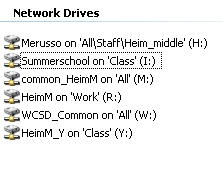
    When you login in school, you automatically connect to a series of network drives, which are available for various purposes. To see what drives you connect to, double-click My Computer on the desktop, and look for the following:

    Here is what each drive is for…

    (H:) – your home folder – for personal files, etc. that noone else has access to
    (I:) – summer school drive- for teachers and students in summer school to access and share files
    (M:) – common Heim Middle drive- for Heim staff to access and share files (no student access)
    (R:) – multimedia drive – where large files (movies, etc.) are stored and moved for class projects
    (W:) – common district drive – for district staff to share files (no student access)
    (Y:) – common staff/student drive – for all Heim staff and students to access and share files, including teacher dropboxes

  • TTT: File Extensions

    Tuesday’s Technology Tip
    Little “bytes” of information to help make your computing life easier.

    All computer files use a 3-letter suffix to help the computer figure out what type of file it is. When saving, the file extension should be created automatically for you. It is a good habit to make sure your files have the extension on them, especially when saving and opening betwenn Windows and Macintosh. Some of the more common file types are:

    .doc (Word DOCument)
    .xls (EXceL Spreadsheet)
    .isf (InSpiration File)
    .exe (EXEcutable file – these are program files that run in Windows)
    .jpg (Joint Photographic Group – these are picture files from digital cameras, etc.)
    .gif (Graphical Interchange Format – these are graphic files also)
    .wrc (Who Really Cares??? -just checking if you’re reading – of course you care 🙂 )

    If you run into a situation where a file does not open like you expected (or with the correct program), check out the file extension to see if it clues you in to the issue.

  • TTT: Quick Launch Bar

    Tuesday’s Technology Tip
    Little Tips to Hopefully Help Make Your Computing Life Easier

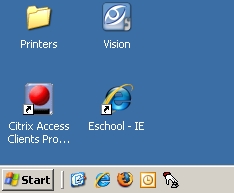
    On District computers, you do not have control over the desktop or Start menu. You can create and mange icons in the Quick Launch Bar, found right next to the Start menu:

    You can drag a shortcut for a program, a folder or a file to the Quick Launch bar, for easy access to those items later.

    Try this to create a shortcut to your server folder:

    1. On the desktop, open My Computer
    2. Click on the icon for your server folder (), and drag it down to the Quick Launch area. If you drag to the correct spot, you will see a vertical bar appear, indicating you can drop a shortcut. If you drag to an incorrect spot, you will see a “Do Not Enter” symbol.
    3. If successful, your Quick Launch bar should look like this:

    Happy shortcut-ing!

  • TTT: WITS Locker

    Tuesday’s Technology Tip
    Little Tips to Hopefully Help Make Your Computing Life Easier

    Staff has access to the same locker that students do in WITS. To attach something to your WITS Locker, do the following:

    a1: Click the “Personal” tab
    a2: Click “My Documents” on the left
    B: Click on “Add Document”
    C: Click “Browse” in the window that opens up and find your file on the computer
    (also note the allowed file types for upload are shown here)
    D: Click “Upload” to put the file in WITS
    E: It will now appear in your list of files. To Download it click on the filename.
    F: If you are done with a file on WITS you should delete it with the “red X icon”

    (click image to enlarge)

    You may attach something to your locker from school to work on at home, or attach it from home to bring to school. Your files will not update as you work on them. You must save them on the computer you are working on and then place them back in your locker when you are done by following these instructions again.

    Hat tip to Chris Poole at Transit for the directions and graphic!

  • TTT: Tabbed Browsing

    Tuesday’s Technology Tip
    Little Tips to Hopefully Help Make Your Computing Life Easier

    You’ve used the Internet for a long time – but have you used tabs to keep your browsing less window-messy?

    Whether you are using Firefox (which started the idea of tabbed browsing) or Internet Explorer, you can open new web pages in tabs, rather than new windows. When you open a page in a new tab, you will see just underneath the address bar folder-like tabs representing each window. One quick way to try this is by right-clicking a link and choosing “Open Link in New Tab.” You can also open new tabs by clicking on the File menu and choosing New Tab.

    Tabs are handy, for example, if you are doing a search, and open different search results in different tabs in order to quickly compare them. To close an individual tab, click on the x on the right side of the particular tab.

    Once you try it, you’ll be hooked – happy tabbing!

    Image citation:

    Ludwig, Ed. E and F. Flickr. 14 October 2008.
    <http://flickr.com/photos/
    ednothing/142815915/>

  • TTT: Windows Key

    Keyboard shortcuts are nifty ways to get things done quickly on the computer. On any keyboard with the Windows key (just to the left of the Alt key, with the Windows logo), here are a few shortcuts you may find helpful:

    Press To
    Windows logo key Display or hide the Start menu.
    Windows key + D Show the desktop
    Windows key + M Minimize all windows
    Windows key +Shift+M Restores minimized windows
    Windows key + E Open My Computer
    Windows key + L Lock your computer

    The above shortcuts (and more) can be found in the Help and Support Center (Start Menu | Help and Support) by searching for keyboard shorcuts. Happy shortcutting!

  • TTT: Windows Task Manager

    Sometimes a program will stop responding (such as Internet Explorer), while you have work open in other programs. The Windows Task Manager lets you choose a specific program to end, while leaving other programs alone.

    To use the Windows Task Manager:

    1. Press Ctrl-Alt-Delete while logged in
    2. Click on Task Manager
    3. In the window that appears, click on the Applications tab near the top
    4. A list of running (and not responding) programs appears – click on the program you want to end
    5. Click on End Task at the bottom of the window

    Note that ending a program this way will not save any changes, just stop the program from running.

    The Task Manager has more tabs (Processes, Performance, Networking) that provides quite a lot of “under the hood” computer information if you are interested.

  • TTT: Creating a PDF of a Document

    You can create a PDF (Portable Document Format) file of any computer file. PDF files are easier to share with other computer users as there is less worry if they have the same software you do. Click on the link below to see how to create a PDF file. Hat tip once again to Nancy Wilhelm, district trainer, for this tip.

    process-to-create-a-pdf

    For more tips on using many different applications, be sure to visit the Tips and Tricks section within the Public Documents section of WITS:

    https://wits.williamsvillek12.org/data/PublicDocuments