Tuesday’s Technology Tip
Little Tips to Hopefully Help Make Your Computing Life Easier
On District computers, you do not have control over the desktop or Start menu. You can create and mange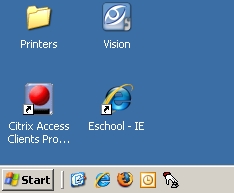 icons in the Quick Launch Bar, found right next to the Start menu:
You can drag a shortcut for a program, a folder or a file to the Quick Launch bar, for easy access to those items later.
Try this to create a shortcut to your server folder:
- On the desktop, open My Computer
- Click on the icon for your server folder (
 ), and drag it down to the Quick Launch area. If you drag to the correct spot, you will see a vertical bar appear, indicating you can drop a shortcut. If you drag to an incorrect spot, you will see a “Do Not Enter” symbol.
 - If successful, your Quick Launch bar should look like this:

Happy shortcut-ing!