Month: October 2008

  • Content Tech: Discovery Education Streaming

    Content Tech
    Ideas for Technology Tools in the Classroom

    Our video streaming service, Discovery Education Streaming, has a wide array of media available to support every content area.

    One way to view available media is by browsing by New York State standard. After logging into your DE Streaming account, scroll down on the left side of the page to the Curriculum Standards Search. Choose New York State, Learning Standards, followed by your subject, grade level, and year (most are based on the 1996 standards).

    At first what appears looks like just a listing of the standards themselves. If you click on the + to expand the standards and performance indicators, you will then be taken to a page with media that supports the particular indicator clicked on.

    For example, browsing the ELA standards regarding reading comprehension reveals the following (click to enlarge):
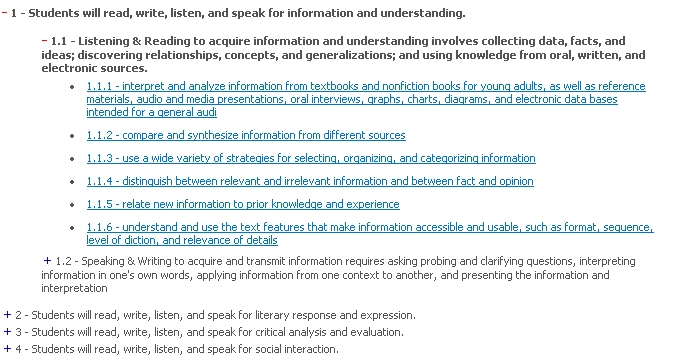
    The DE Streaming service allows for many different ways to search for content – this is just one way you can discover resources for your class.

  • TTT: WITS Locker

    Tuesday’s Technology Tip
    Little Tips to Hopefully Help Make Your Computing Life Easier

    Staff has access to the same locker that students do in WITS. To attach something to your WITS Locker, do the following:

    a1: Click the “Personal” tab
    a2: Click “My Documents” on the left
    B: Click on “Add Document”
    C: Click “Browse” in the window that opens up and find your file on the computer
    (also note the allowed file types for upload are shown here)
    D: Click “Upload” to put the file in WITS
    E: It will now appear in your list of files. To Download it click on the filename.
    F: If you are done with a file on WITS you should delete it with the “red X icon”

    (click image to enlarge)

    You may attach something to your locker from school to work on at home, or attach it from home to bring to school. Your files will not update as you work on them. You must save them on the computer you are working on and then place them back in your locker when you are done by following these instructions again.

    Hat tip to Chris Poole at Transit for the directions and graphic!

  • Way too fun!

    So this is the first post from my iPod touch. A trip to the App Store & I downloaded the free WordPress app. After a few configuration settings, I can post and manage the blog from my shirt pocket!

    This device is a game changer in portable computing…

  • Content Tech: LOTE Proficiency

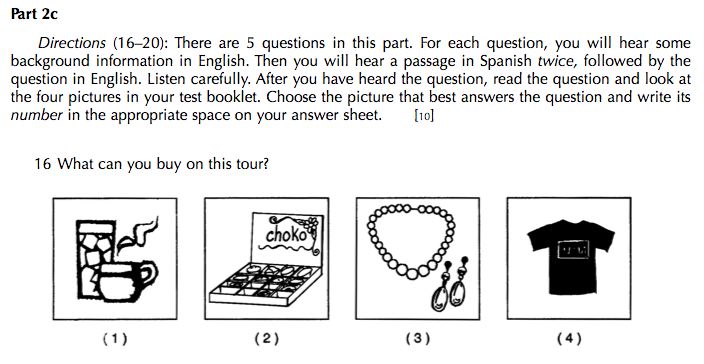
    En 2007 el examen de idioma español tiene la siguiente pregunta (click para ampliar):
    The distractor for this type of question format is different in that the answers are pictures. Students have to translate/visualize the target language they hear, rather than seeing English answers which would provide clues. Marzano’s Building Academic Vocabulary comes into play here, just as it did in the example a couple of weeks ago with Science. How might technology help?

    No Tech
    Students maintain vocabulary notebook ala Marzano, including their own drawings of terms.

    Some Tech
    Using interactive whiteboard, students create pictures representing terms which are saved and shared electronically with the class.

    Total Tech
    Using drawing software, students create pictures which are saved and posted to a class wiki where they are organized to highlight exemplary samples by individual students.

    Image citations:
    Question 16. Second Language Proficiency Examination, Spanish, June 18, 2007. 14 October 2008. http://www.nysedregents.org/testing/slp/es-607.pdf
    LOTE Home. Second Language Proficiency Examinations. 14 October 2008. http://www.nysedregents.org/testing/loteslp/slpspanish.html
    Halcones de Heim son Número Uno!
  • TTT: Tabbed Browsing

    Tuesday’s Technology Tip
    Little Tips to Hopefully Help Make Your Computing Life Easier

    You’ve used the Internet for a long time – but have you used tabs to keep your browsing less window-messy?

    Whether you are using Firefox (which started the idea of tabbed browsing) or Internet Explorer, you can open new web pages in tabs, rather than new windows. When you open a page in a new tab, you will see just underneath the address bar folder-like tabs representing each window. One quick way to try this is by right-clicking a link and choosing “Open Link in New Tab.” You can also open new tabs by clicking on the File menu and choosing New Tab.

    Tabs are handy, for example, if you are doing a search, and open different search results in different tabs in order to quickly compare them. To close an individual tab, click on the x on the right side of the particular tab.

    Once you try it, you’ll be hooked – happy tabbing!

    Image citation:

    Ludwig, Ed. E and F. Flickr. 14 October 2008.
    <http://flickr.com/photos/
    ednothing/142815915/>

  • Content Tech: 7th Grade Math

    Gone are the days of math problems where you just write your answer. Showing work and explaining your answer are key components in math, as the process of solving is as important as the product. Below is a question from Book 2 of the 2007 7th grade exam (click to enlarge):

    How technology might help…

    No Tech
    Students have workbooks and other materials with practice problems, and regularly work on them.

    Some Tech
    Students use interactive whiteboard to write their solutions to problems, teacher shares with class and posts online.

    Total Tech
    Teacher posts sample problems in WITS discussion forum, students post their responses, and engage in analysis of all responses.

    Image citation:
    Question 35. Mathematics Test Book 2 March 12-17, 2007. 8 October 2008. http://www.nysedregents.org/testing/mathei/07exams/gr7bk2.pdf

  • WordCamp & the Gallery

    So I’m trying out the gallery feature for the first time, something I learned from Rannie’s presentation on Saturday. Hat tip to verneho’s flickr photo set for the images!

    Photos: WordCamp Toronto Logo, Swag, Matt Mullenweg (founding developer of WordPress)

  • WordCamp Toronto 2008

    I’m excited about attending a geeky opportunity this weekend – WordCamp Toronto. WordCamp is a gathering of WordPress users held regionally around the world throughout the year (see this page for other WordCamps). Over two years ago I switched to using WordPress to power this blog, and never looked back. 🙂

    One of the main attractions at WordCamp is a talk by the founding developer of WordPress, Matt Mullenweg. I think it’s just cool to be able to connect with someone like this in this setting. Looking at the list of attendees, I think I may be one of the only educators, but I’m looking forward to the conversations.

    You may just see a whole pile of tweaks and changes to the blog after this weekend is over!

  • Content Tech: 8th Grade Science

    Science exams are full of diagrams and models, and terminology associated with them. Following are 2 examples from the 2008 8th grade science exam (click each image to enlarge):

    Marzano’s work in Building Academic Vocabulary certainly would be helpful in these examples, as the distractors are set up to trick students who might confuse circulation/respiration or refraction/reflection. How might technology help?

    No Tech
    Students maintain vocabulary notebook ala Marzano, including their own diagrams of examples of science terms and processes.

    Some Tech
    Using interactive whiteboard, students create pictures which are saved and shared electronically with the class.

    Total Tech
    Using drawing software, students create pictures which are saved and posted to a class wiki where they are organized to highlight exemplary samples by individual students.